Category: FAQ

  • Install Text to Word Converter Software: Easy Steps

    Install Text to Word Converter Software: Easy Steps

    Some times converting text files to word documents is a pain. Particularly when you are trying to do this for a large number of files. If you are looking for Text to Word Converter installation guides, you have landed on the right webpage. Text to Word Converter makes this conversion process better & faster, and allows for batch conversion for both TXT to DOC/DOCX file types and DOC/DOCX to TXT file types. This article presents a step-by-step tutorial on how to install Text to Word Converter on your computer and how you can get started converting files as soon as possible and, best of all, you do not have to be a tech guru to install Text to Word Converter.

    Step 1- Get the Text to Word Converter Download:

    To begin, Click here visit the Text to Word Converter product page.

    • Then, click on the “Download” button. text to word converter download page Then fill in the required information (Name, Email, Country) and the click on the “Download” button.
    text to word converter download page

    Step 2: Find and Extract-

    • First, Find the downloaded ZIP file on your computer (usually in your “Downloads” folder).
    • Right Click on the ZIP file and select “Extract All”.
    • Choose a location to extract the files (e.g.: create a new folder to place the extracted files, or extract it to your Desktop).
    • Final step: Click “Extract”.
    extraction process of zip file
    extracted files demo

    Step 3: Start the Installation Process-

    • Now,go ahead and open the extracted folder. Inside the folder you will find the Text to Word Converter installer file (i.e. “setup.exe”). Double click this file to begin the installation. install text to word converter
    install text to word converter

    Step 4: User Account Control-

    • In addition, it may ask you through a user account control (UAC) if you want to allow the application to make changes to your device. This is normal part of security. Click “Yes” to proceed.

    Step 5: Install Wizard-Welcome Screen

    • The install wizard will then launch with a welcome screen. Click “Next” to continue the install process.
    welcome prompt demo

    Step 6: Read the License Agreement

    • Next, you will see the license agreement for the software. You will want to read the license agreement carefully. If you agree to the terms select “I accept the agreement” and then select “Next.”
    license agreement of text to word converter

    Step 6: User Information and Installation.

    • Next, the install wizard will then ask for User information. Fill in your User Name and Organization (if applicable). Click “Next” to proceed.
    next button demonstration

    Step 7: Ready to Install

    • Then, the wizard will provide a summary of the install. Click “Install” to begin the installation process.
    install text to word converter

    Step 10: Completing the Installation

    • When the install is finished, you will see a confirmation screen. Select “Finish” to close the wizard. Now you can either launch the software right away.
    finish the process demonstration
    installation completed

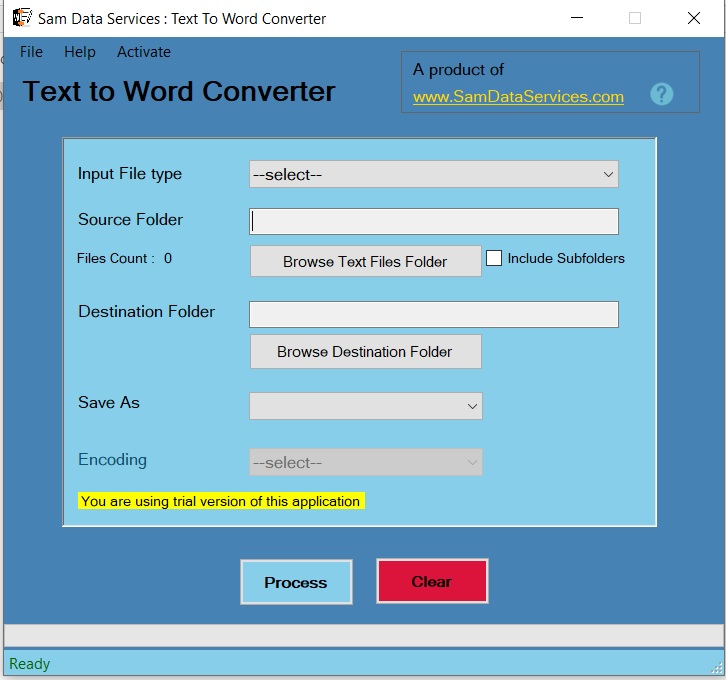
    With Text to Word Converter installed, it’s time to convert your files. The simple and easy to follow interface allows for quick selection of the source files, direction of the desired output (TXT to DOC / DOCX or DOC / DOCX to TXT) and conversion to take place with minimal fuss.

    Key Features of Text to Word Converter-

    • Finish in bulk: Batch convert multiple files at the same time.
    • Two way: Do both TXT to word and word to TXT conversions.
    • User friendly: Easy to navigate and operate.

    By following the instructions, you have successfully installed Text to Word Converter and can consider the file conversion process more manageable. Download the free trial today and make life easier!

    If any queries arise, you can contact us through email at samdataservices(at)gmail.com or by filling out the contact form.

  • Focus WhatsApp Bulk Sender: Guide to Effortless Marketing

    Focus WhatsApp Bulk Sender: Guide to Effortless Marketing

    Do you want to engage with your audience on WhatsApp at scale? This guide will show you a simple, step-by-step process of sending bulk WhatsApp messaging with Focus. This is especially useful for those who don’t know much about sending bulk messages as Focus makes it a whole lot easier to engage your customers.

    There is no doubt that WhatsApp is one of the powerful communication tools available. Focus makes it easy to reach your audience and saves you valuable time and effort. This guide will make it easy to see how to use Focus for your WhatsApp marketing.

    What is Focus Bulk WhatsApp Sender?

    Focus is a software solution. It is purpose-built to make your WhatsApp communication marketing efforts even easier. The bulk sender will send messages to many contacts in a single session. This is handy for when you want to announce a promotion, share an update, or nurture some leads, the Focus solution could help.

    Step-by-Step Guide to WhatsApp Bulk Messaging:

    Step 1 – Installation:

    To get started you will need to download Focus from Sam data services at this link click here.

    Once you’ve completed the download, then it’s easy, just follow the simple on-screen instructions to install Focus to your computer.

    If you would like help, check out our guide on the installation. Install Focus Bulk WhatsApp Sender: A Step-by-Step Guide

    Step 2 – License Activation:

    Once installation is complete, you will need to activate your Focus license. You can purchase the license at Sam data services-buy license

    then follow Our activation guide- [ License Activation Guide Link ]

    With Focus installed and activated, let’s learn how to send bulk WhatsApp messages.

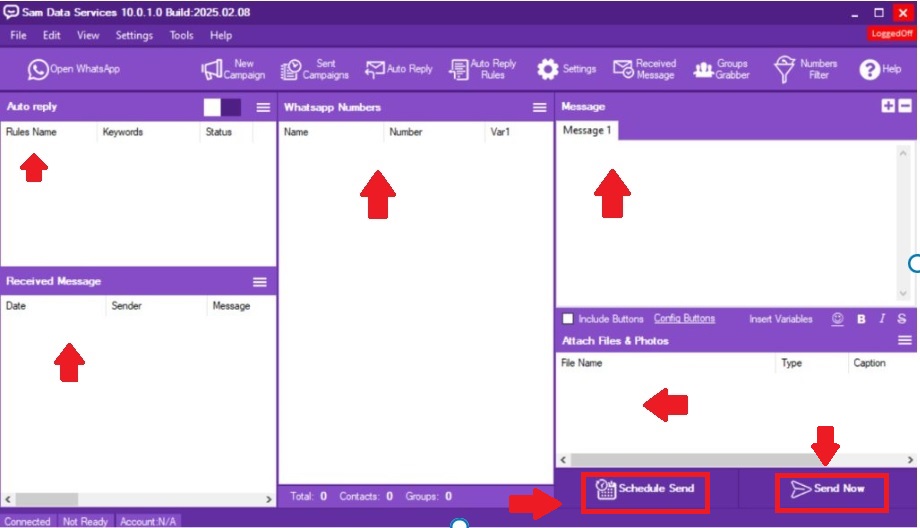
    1. Open WhatsApp: Click “Open WhatsApp” within Focus to connect your WhatsApp account to the software.
    2. New Campaign: Click “New Campaign” to create a new bulk message campaign and begin crafting your message.
    3. Managing Sent Campaigns: View your past campaigns and their statistics by clicking “Sent Campaigns,” allowing you to analyze campaign performance and optimize your Focus WhatsApp bulk sender strategy.
    4. Auto Reply: Set up automated responses to incoming messages using “Auto Reply” and “Auto Reply Rules.” Define keywords and corresponding replies for efficient customer interaction.
    5. Settings: Configure various settings related to your WhatsApp account, messaging options, and automation by clicking “Settings.”
    6. Received Messages: View all incoming WhatsApp messages within the Focus interface by clicking “Received Message.”
    7. Group gabber: Manage your WhatsApp groups efficiently using the “Groups” feature.
    8. Number Filter:: Manage and organize your WhatsApp contacts here. Import contacts, segment them into lists, and keep your audience organized.
    9. Help: Access Focus’s help resources and documentation via the “Help” button if you need assistance.
    botmaster bulk whatsapp sender demonstration

    Sending Bulk Whatsapp Messages

    1. Message: Compose your bulk message in the “Message” section. Personalize with variables, add attachments, and format text to create engaging content.
    2. Insert Variables: Personalize messages by inserting variables like recipient names or other relevant information.
    3. Attach Files & Photos: Make your messages more engaging by attaching images, videos, or documents.
    4. Schedule Send: Plan your campaigns in advance by scheduling your messages to be sent at specific times.
    5. Send Now: Send your message immediately to your selected audience.
    how to use botmaster

    Focus empowers you to harness the reach of WhatsApp for your business. By following this guide and implementing the best practices, you can create impactful campaigns that drive engagement and achieve your marketing objectives.

    Start exploring Focus’s features today and unlock the potential of WhatsApp marketing.

    If any queries arise, you can contact us through email at samdataservices(at)gmail.com or by filling out the contact form.

  • Activate Focus Bulk WhatsApp Sender License in 3 Easy Steps

    Activate Focus Bulk WhatsApp Sender License in 3 Easy Steps

    Congratulations on upgrading to premium! You’re about to unlock the full power of automated WhatsApp marketing that’s already helping 10,000+ businesses increase their customer engagement by 300%.

    I know license activation can sometimes feel overwhelming, but I’ve streamlined this process to take just 3 minutes. By the end of this guide, you’ll have unlimited messaging power, advanced scheduling features, and priority support.

    Time needed: 3 minutes
    Technical skill required: None – I’ll guide every step
    Support included: Yes – direct email access to our team

    Ready to supercharge your WhatsApp marketing? Let’s get you activated right now!

    For the Installation steps visit: Install Focus Bulk WhatsApp Sender: A Step-by-Step Guide

    Getting your Focus Bulk WhatsApp Sender license and knowing how to activate Bulk WhatsApp Sender is very simple. Here are some common steps you have gather.

    1. Open Focus Bulk WhatsApp Sender:
      • Begin by opening the Focus Bulk WhatsApp Sender application on your computer.
    2. Copy the License Request Key:
      • When the application opens, you will see a License Request Key in the application – One of the important milestones in the process is your copy the License request key to your clipboard.
    botmaster license key copy demo

    Go To Sam data Services Buy Page:

    • click here to Navigate to the Sam data Services website’s buy page for Focus Bulk WhatsApp Sender.

    Enter Your Details And Paste the Request Key:

    • Next, you will need to complete the form on the purchase page where you are asked to fill in your information. Ensure you fill out all the relevant fields and Locate the field for the License Request Key and paste the key you copied above.
     bot master license purchase demo

    SelectYour Payment Method Then Make Payment to Receive Your License Key:

    • Sam Data Services offer a couple of different types of payment methods, Select the one you want then complete the payment process.
    • After your payment is processed you will receive an email with your Focus – Bulk WhatsApp Sender License Key.
    payment process for license purchase guide

    Activate Your Software and Start Sending!

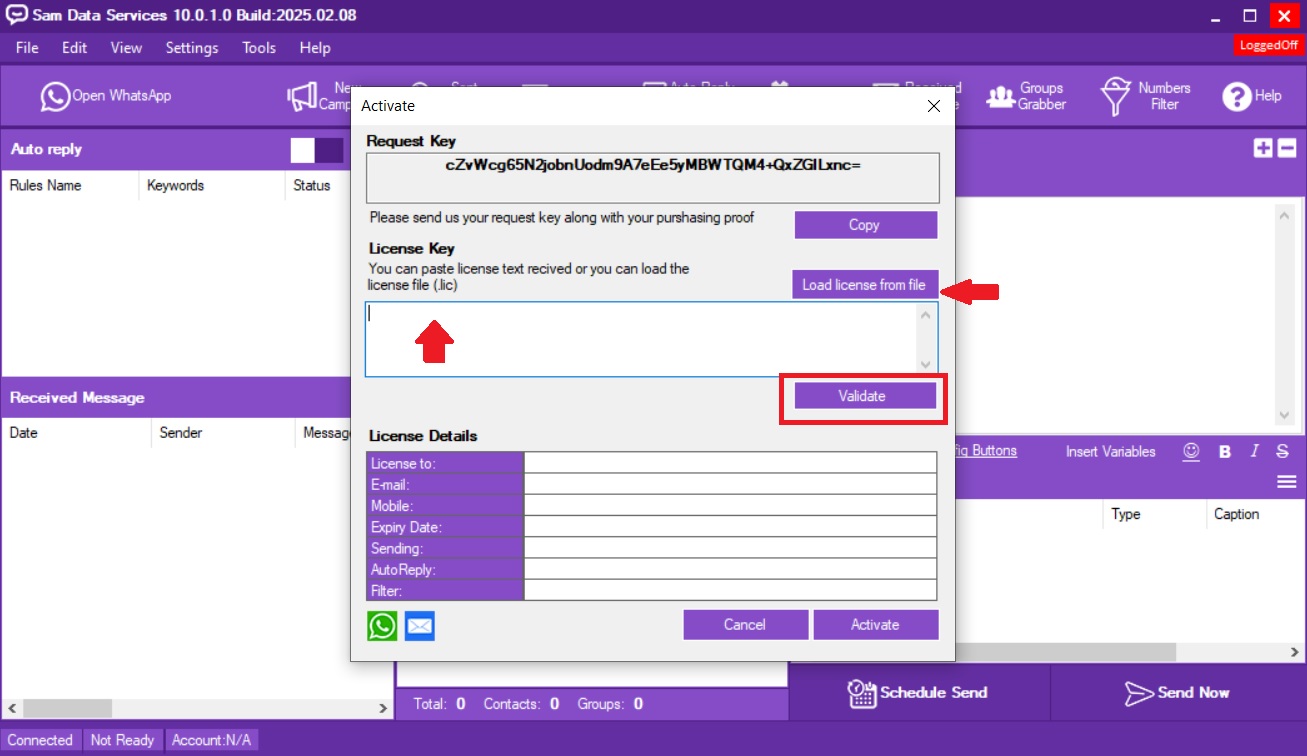
    • Again open Focus Bulk WhatsApp Sender. You Should see a field to paste your License Key. Paste the key you received via email into this field.
    license validation process
    • After, you successfully enter your License Key you will activate your Focus Bulk WhatsApp Sender software and will be able to start your bulk WhatsApp campaigns as you want to.
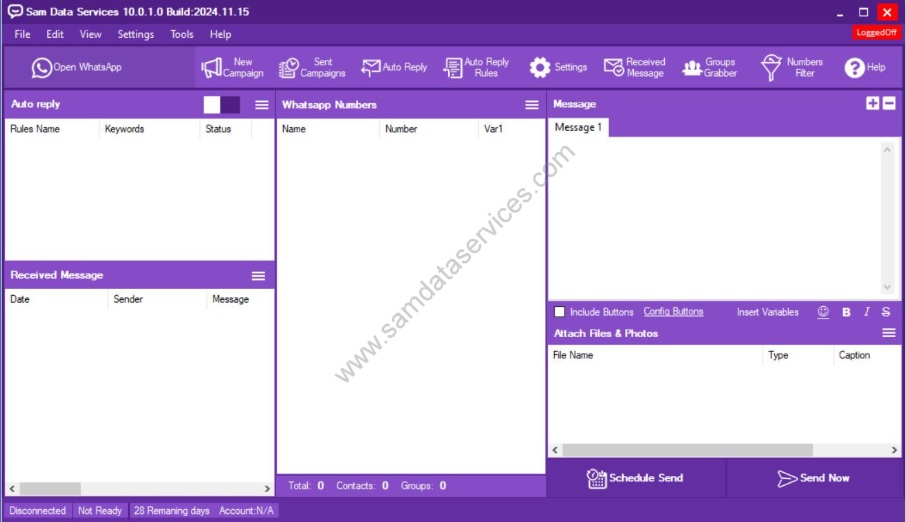
    license activated demonstration

    It’s this easy to obtain your Focus Bulk WhatsApp Sender license then use it to access the features of Focus, and start managing your WhatsApp marketing strategies.

    If any queries arise, you can contact us through email at samdataservices(at)gmail.com or by filling out the contact form

  • Set Up WhatsApp Marketing Automation in 5 Minutes (Free Tool)

    Set Up WhatsApp Marketing Automation in 5 Minutes (Free Tool)

    Tired of sending WhatsApp messages one by one to your customers? I totally get it – I’ve been there! As someone who’s helped over 5,000 businesses automate their WhatsApp marketing, I can tell you that Focus Bulk WhatsApp Sender has been a complete game-changer. Imagine reaching 1,000+ customers with personalized messages in just minutes instead of hours. That’s exactly what you’ll be able to do after following this simple 5-minute installation guide.

    What you’ll achieve after installation: Send unlimited bulk WhatsApp messages , Import contacts from Excel/CSV files , Schedule campaigns for optimal timing, Track message delivery and responses , Automate customer follow-ups.

    Install Focus Bulk WhatsApp Sender in minutes with the following step-by-step installation guide.

    Step 1- Download Your Marketing Automation Tool:

    • To begin, Click here to access the Focus Bulk WhatsApp Sender product page.
    • Then click on the Download button. This will direct you to the download page.
    Install BotMaster Bulk WhatsApp Sender dashboard
    • Then, fill in your personal details (Name, Email, Country) and click the Download button.
     BotMaster Bulk WhatsApp Sender download page demonstration

    Step 2: Extract the Files:

    • First, locate your downloaded ZIP file on your computer (usually in your Downloads folder). Right click on the ZIP file and then select “Extract All.” Choose a place on your computer to extract the files (e.g., create a new folder or your Desktop).
    • Finally, click “Extract.”
    extraction files of botmaster bulk whatsapp sender
     WhatsApp Sender click extract demo

    Step 3-Begin the Focus WhatsApp Installation:

    • First, open the folder where you extracted the files.
    • Inside the folder, there should be the Focus Bulk WhatsApp Sender installation file.
    • To start the installation, double click on the installation file.
    installation process guide of bot master bulk whats app sender

    Now, let’s go through the installation steps.

    Step 4-User Account Control :

    • At this stage, a User Account Control (UAC) prompt may pop up and ask if you would like to allow the application to make changes to your device. This is just a security feature. Click “Yes” to allow the install.

    Step 5- The Installation Process:

    • Now, the Focus Bulk WhatsApp Sender installation will now start.
    • To proceed, just click “Next” to move through the installation steps from here on.
    • There MAY be a step where you are asked to specify an install location. If you don’t know, it’s usually okay to just go with the default location.
    • Click “Next” when you are done.
    proceed by clicking next demo
    files location option of botmaster

    Additional Tasks:

    • If your installation is generic, just prior to the final confirmation message, there may be a dialog box with the option for additional tasks. Typically, it will let you decide if you want a desktop shortcut or a Start Menu folder.
    • Go ahead and check off whichever tasks you want. In general, I would advise you to create a desktop shortcut as this is the simplest option. Click “Next.”
    additional task option

    Step 6-Finish the Installation:

    • The final confirmation message will appear.
    • Click “Finish” to close the installation wizard.
    finish to complete demo

    For more information about Focus Bulk WhatsApp Sender’s features, visit our product page- https://www.samdataservices.com/bulk-whatsapp-sender-software-download.aspx

    If any queries arise, you can be contact us through email at samdataservices(at)gmail.com or by filling out the contact form.

  • Focus Map Scraper Guide : Extract Google Maps Data (Tutorial)

    Focus Map Scraper Guide : Extract Google Maps Data (Tutorial)

    “This complete guide will show you how to operate Focus Map Scraper”

    Introduction:

    With Focus Map Scraper, you are able to access Google Maps data in a way you have never done before. This guide presents a straightforward step-by-step tutorial covering how to use the tool as a Chrome Extension to efficiently extract business information, location data and much more for content, research and marketing. Your website will benefit from using this business lead scraping.

    focus map scraper dashboard screenshort

    “Focus Map Scraper software interface”

    This business lead scraping tool offers serious value to businesses. Following this guide, you will learn how to use this tool and extract business information, seek new opportunities, and use this for marketing.

    What is Focus Map Scraper?

    • Focus Map Scraper is easy to use and allows you to extract different types of data from Google Maps such as.
    • Business Information: Names,Emails,addresses,phone numbers,websites,ratings,and reviews.
    • Location Data: Coordinates (latitude and longitude), postal codes, and neighborhoods.
    • Images: Business logos and photos.
    • Opening Hours: Opening hours and any special hours and more.

    How to Use Focus Map Scraper to Boost Your Content:

    1. Installing the Extension:

    focus map scraper steps screenshot

    2.Activate the Extension:

    launch focus map scraper screenshot
    focus map scraper activation screenshot

    3. Start Scraping:

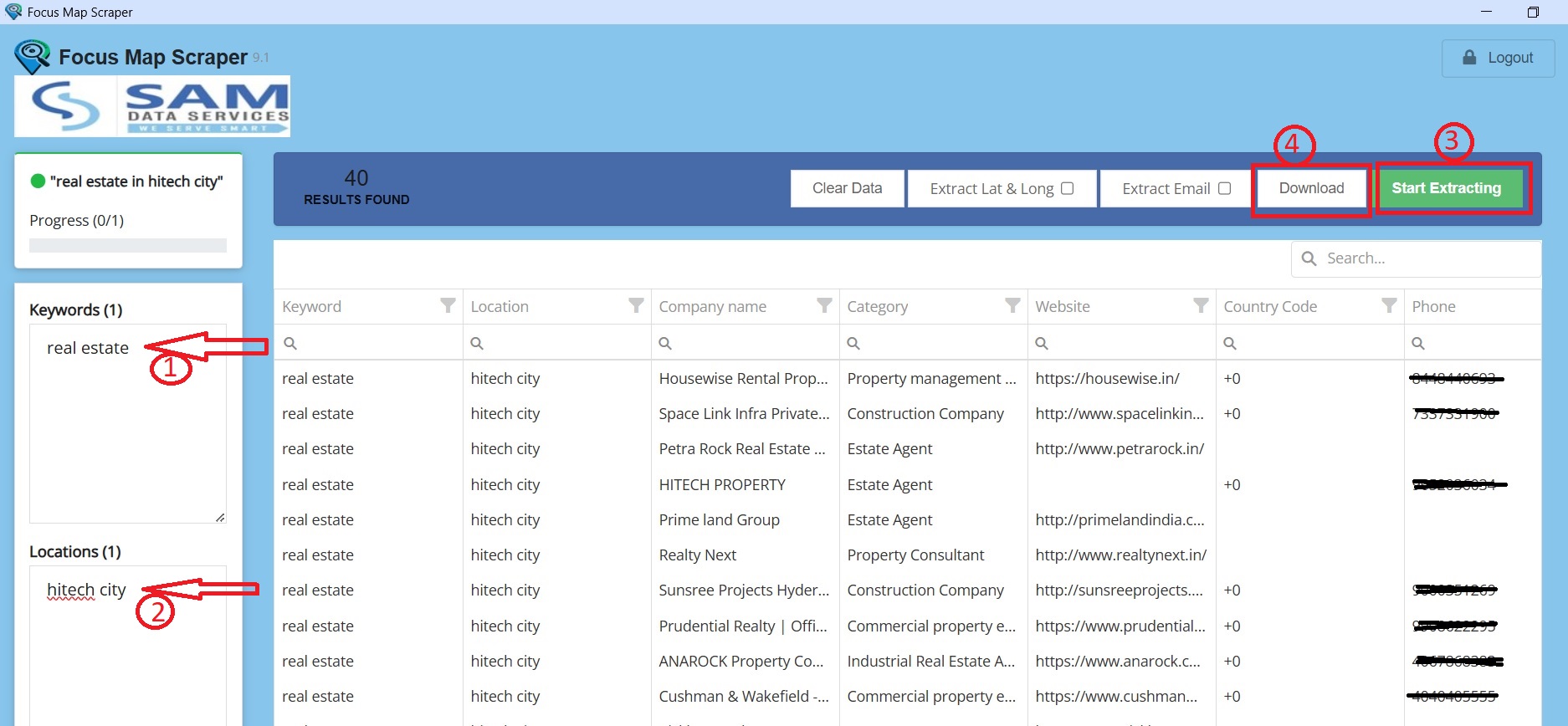
    • Focus Map Scraper allows you to Add keywords, location, and even extract email addresses, while also giving you control over the search duration.
    focus map scraper lisence screenshot

    Tips for Using Keyword and Location:

    • Keep it simple: Use small precise keywords make your results better. For location-specify City or Pin Code In a template. “(keyword)Real Estate (location)(your area or city name)”.
    • Be precise: the more precise your keywords and locations are the more targeted your results will be.

    Extract the Data:

    Click ‘Extract’ and you will instantly commence the extracting of the data and obtain the correct and relevant information for what you were after.

    focus map scraper screenshot
    focus map scraper lisence screenshot

    You can easily export the data into Excel or CSV, making it easy to continue on your own policy examination or analysis tools, by simply clicking on the download button. You may also clear your history and start a new search with one-click, promoting seamless use.

    download screenshot

    If any queries arise, you can contact us through email at samdataservices(at)gmail.com or by filling out the contact form

  • Activate Focus Map Scraper License Key (2025 Setup Guide)

    Activate Focus Map Scraper License Key (2025 Setup Guide)

    “This guide will describe the process of activating your Focus Map Scraper License step by step and help you master the simple process of unlocking the advanced features to maximize your ability to extract data.”

    Why do you need a Focus Map Scraper License?

    The Focus Map Scraper license gives you access to advanced features that add significant value to your data extraction ability.
    • Export Extracted Data: You can easily export the extracted data into a variety of formats (CSV or Excel, for example.) and utilize it in other applications, data analysis products, and databases accordingly.
    • Extract Data More Than 50 records: For the basic version of Focus Map Scraper, you might have limitations on the number of records you may extract. A license will remove the limitation for extracting a virtually unlimited amount of records for effective data analysis, while improving the speed and ease in which you extract records.
    • Download Extracted Data: Store received data extracted on the extracted data on your local computer for offline analysis, storage or further processing.

    How to Buy a Focus Map Scraper License?

    To activate your Focus Map Scraper License, Just follow these simple steps.

    Option 1: Purchase through the Focus Map Scraper Application

    focus map scraper license screenshot
    1. Open the Focus Map Scraper Application: After successfully installing the extension, open Google Chrome, and launch the extension on your system.
    2. Buy Full Version : Locate and click the “Buy Full Version” button on the top right corner of the application interface.
    3. Re-direct to Sam Data Services Website: You will be taken to the purchase page on the Sam Data Services website.
    4. Choose Your Payment Method: Choose the payment method of your choice from the options available (e.g. UPI, Bank Account or PayPal).
    5. Make Payment: Make the payment and then you should receive a payment confirmation.
    6. Fill the Activation Form: While on the Sam Data Services website, there will be an activation form, complete it. You may be asked to upload a screenshot, or a copy of your payment receipt, as proof of purchase – if required upload it to the form and then submit.
    7. Receive Activation Key: You will receive your activation key via email within an allocated timeframe.
    focus map scraper license screenshot
    focus map scraper license request submit

    Option 2: Purchase through the Sam Data Services website.

    Buy License button
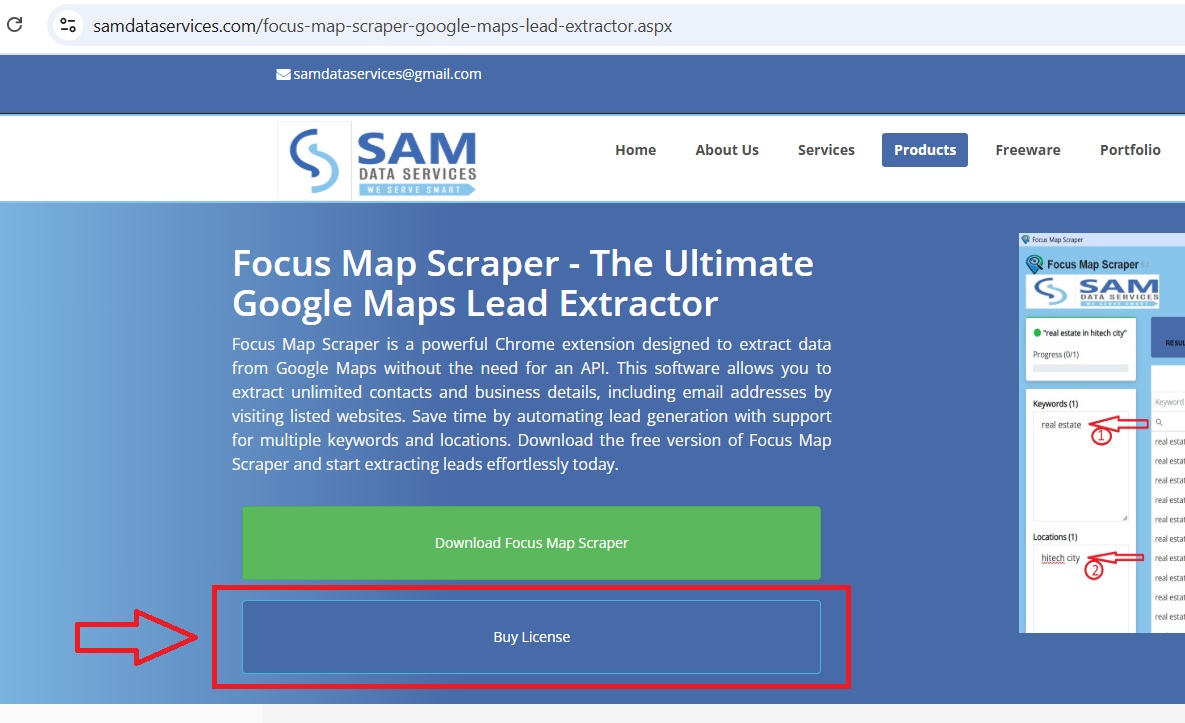
    • Select Buy License: Locate the “Buy License” option on the “Focus Map Scraper” product page, you will be re-directed to the Buy page.
    • Complete the same steps above in point 4 under Option 1.

    Disclaimer: Please verify the account details before initiating any transactions. Sam Data Services is not responsible for any incorrect transfers or misuse of this information.”

    To Activate Your License:

    • Open the Focus Map Scraper Application
    • Click Activate License: Find the Activate License button in the top right corner of the application.
    Activate License
    • Enter your Activation Key: Simply copy the activation key emailed to you and paste in the appropriate box.
    focus map scraper Activation Window
    • Start Unlimited Extraction: When the activation is successful you will be able to start extracting unlimited data.
    focus map scraper license version

    Buying a Focus Map Scraper license is a smart choice for companies and individuals with a desire to use data. Utilizing premium features like unlimited Data extraction and easy data export will provide a much more powerful data extraction and, ultimately, usage experience.

    With a license, you will maximize the potential of Focus Map Scraper with the ability to dramatically improve data-driven decision-making.

    If any queries arise, you can be contact us through email at samdataservices(at)gmail.com or by filling out the contact form

  • Focus Map Scraper Install Guide 2025 (Free Chrome Extension)

    Focus Map Scraper Install Guide 2025 (Free Chrome Extension)

    Looking to extract business leads from Google Maps automatically? Focus Map Scraper is a powerful Chrome extension that extracts business data, contact information, and leads from Google Maps without API limitations. This guide will walk you through the complete installation process in under 5 minutes.

    Enjoy the ease of automated lead extraction with our simple yet powerful software that includes features to make your workflow even easier.

    What is Focus Map Scraper?

    Focus Map Scraper is a free Chrome extension that automates Google Maps data extraction. The tool extracts unlimited contacts, emails, and business details without API limitations, making it perfect for:

    • Lead generation for sales teams
    • Market research for businesses
    • Competitor analysis for marketing
    • Local business data for directories

    Start extracting leads today with our free version.”You can still upgrade your subscription for premium features later”

    Focus Map Scraper Chrome Extension Installation Steps:

    Download Focus Map Scraper from our website

    • Click here Click here to be redirected to the Focus Map Scraper product page, click the “Download” button as highlighted in the image below. You will be redirected to the Download page.
    • Complete the Name, Email and Country area as depicted below, then click on the Download Button. This should produce a standard downloaded zip file that contains files for the extension.
    focus map scraper download

    Unzip the file and Locate the extension files folder

    • Find the ZIP file: Locate the ZIP file that you downloaded on your computer (typically in your Downloads folder).
    • Extract the files:Right click on the ZIP file and then select “Extract All” (or something similar). Choose a location on your computer to extract the files to (e.g. your Desktop or dedicated folder).
    • Find the installation folder: After you extracted the ZIP folder, you will need to open the folder that you extracted the files to.
    focus map scraper extract zip
    copy folder path after extracting

    Open Chrome extensions and Switch on the developer mode

    • Open the Google Chrome browser.
    • In the address bar, type chrome://extensions/ and hit Enter or click on the 3 dots button in the right corner of Google Chrome icon.
    • Turn on “Developer mode” in chrome://extensions/
    • Then, Click “Load unpacked” and select the folder that contained focus-map-scraper .

    Step 4: Install extension, pin the extension to get access

    • Load unpacked: Click on the “Load unpacked” button.
    • Select the extension folder: In the window that opens up in your file explorer, navigate to and select the folder containing the Focus Map Scraper files.
    • Pin the extension: After you successfully load the extension, you can pin it for quick and easy access. Click on the Pin icon (looks like a pushpin) located next to the extension.
    • This will allow addition of the extension to the Chrome toolbar
    Load the unpacked extension
    Activate the extension
    Pin the extension

    Ready to use:
    It’s time to start using the Focus Map Scraper You should now see the Focus Map Scraper icon in the toolbar of your Chrome web browser. Click on the icon to open the extension and start using it for web scraping.

    “Grow your business with premium features, new releases, and support with subscription flexibility.”

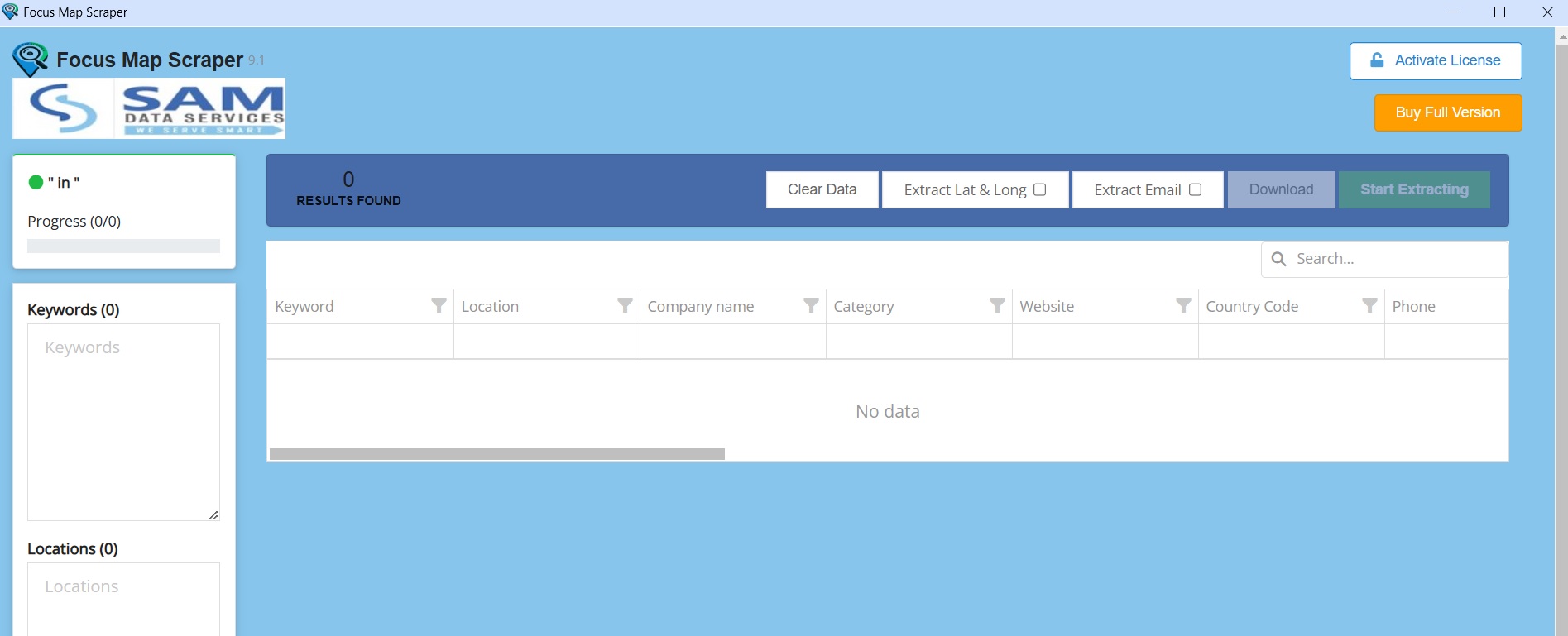
    Your Focus Map Scraper Chrome Extension installation is complete, and the image shot below shows the software interface.

    Focus Map Scraper interface

    “We’re committed to provide you with the best possible products.”

    If any queries arise, you can be contact us through email at samdataservices(at)gmail.com or by filling out the contact form.

  • How to Get Focus Auto Typer License Key-Remove 100 Letter Limit

    How to Get Focus Auto Typer License Key-Remove 100 Letter Limit

    Focus auto typer software is available for free download. It is free to try all the features of software. The only limitation in free version is that it allows only 100 letters of text. If you want to auto type unlimited text using focus auto typer, you need a valid license. To know more about software usage, click here. Below are the steps to get focus auto typer license file/key. The steps are same for Focus Form Filling auto typer as well.

    Why You Need a Focus Auto Typer License

    Free Version Limitations:
    • 100-letter text limit per session
    • All features available for testing
    • Perfect for evaluating the software

    Licensed Version Benefits:

    • Unlimited text automation
    • No character restrictions
    • Full professional features
    • Priority email support
    • Lifetime software updates

    Steps to get focus auto typer license file:

    1. Download focus auto typer from here.

    2. Install the software and run it, you will see the License activation window as shown below

    focus-auto-typer-activation

    3. In the Activation window, enter your email address and click on Generate License Request File. The license request file will be generated and it can be saved at your desired location. The generated license request file will be saved with .sdsr extension.

    focus auto typer license request

    4. Complete the payment through UPI(for Indian payments) or PayPal(for international payments), details are available here.

    5. Submit the License Request file and payment proof screenshot at http://www.samdataservices.com/buy.aspx

    6. On submitting a valid request file and payment proof, you will receive an email with License File(.sdsx extension) attached to it. Typically it may take 2-4hrs for receiving an email with license.

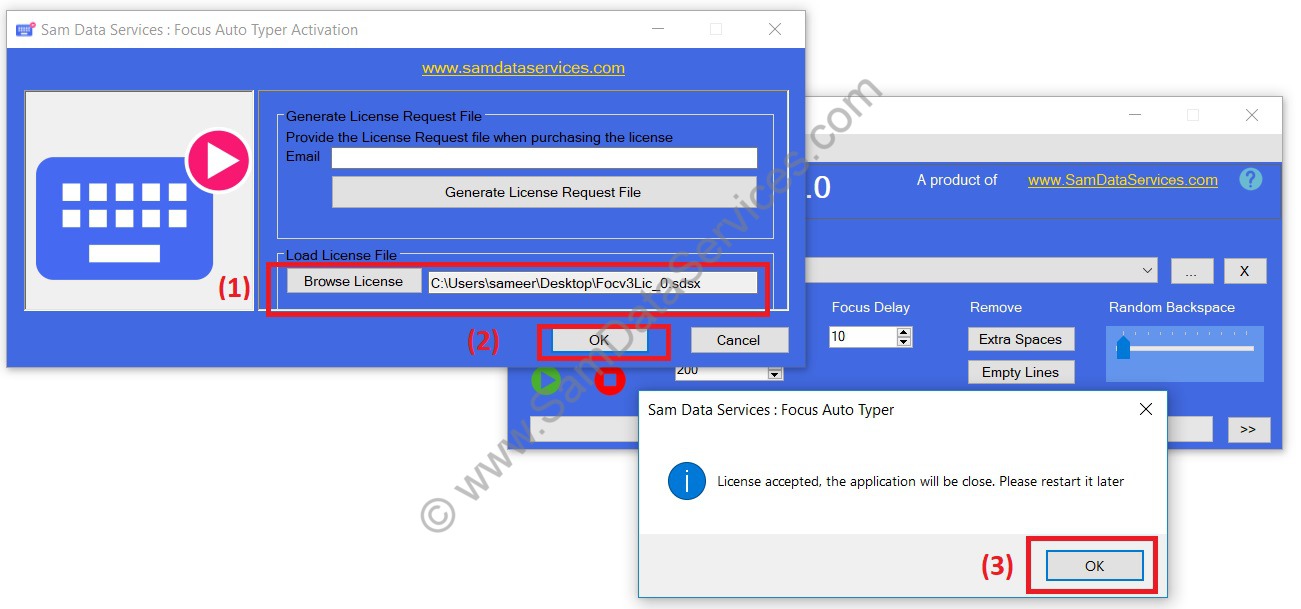
    7. Download the License file and browse it on activation window.

    focus-auto-typer-3.0-license-activation

    8. Restart the focus auto typer software and use the full version.

    Your Focus Auto Typer license key unlocks powerful automation capabilities. Follow this guide to activate unlimited text processing and transform your typing workflow today.

    If you have any queries, please contact us through email, samdataservices@gmail.com or fill the contact form